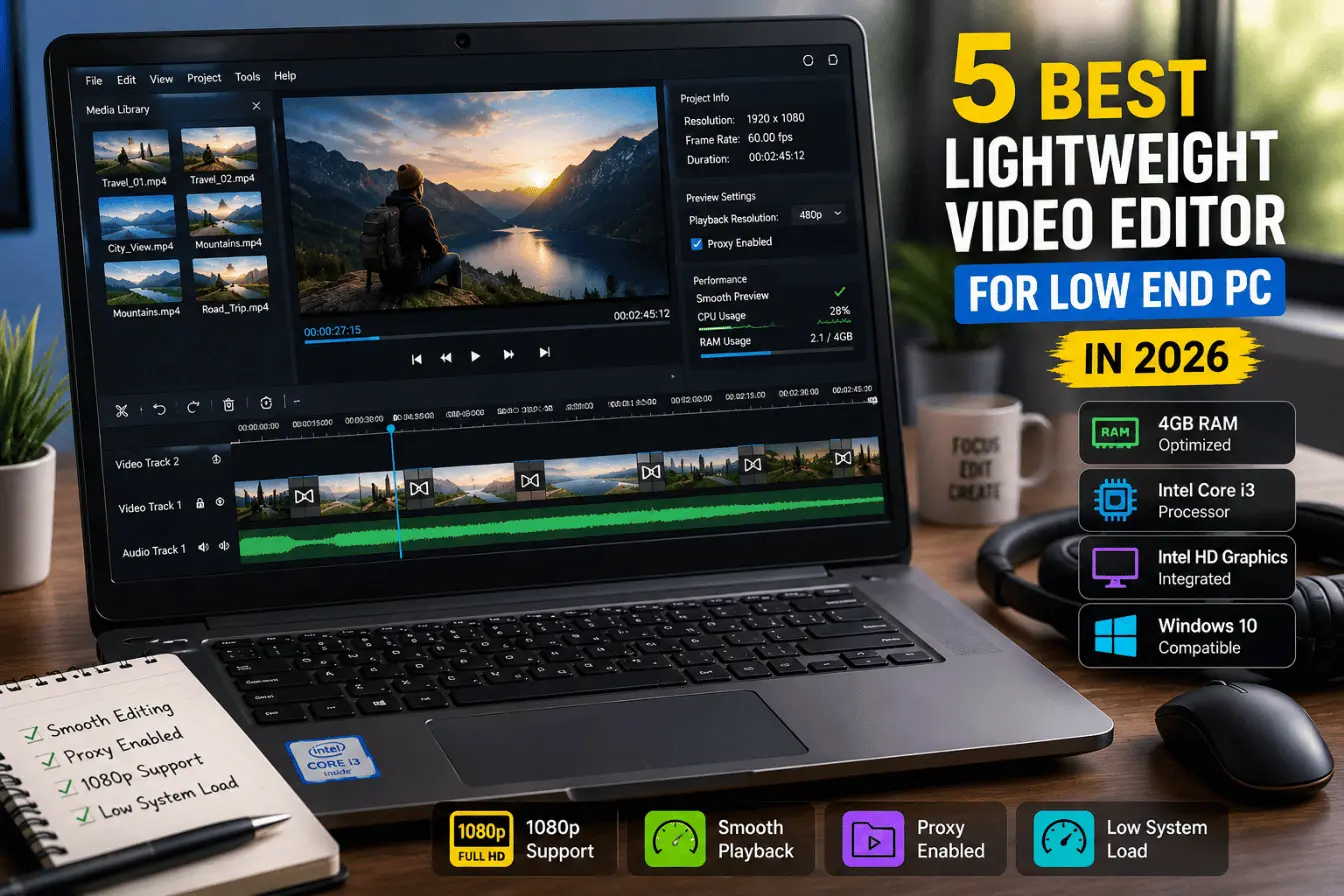
5 Best Lightweight Video Editors for Low-End PC in 2026 (Tested on 4GB RAM)
If your laptop fan sounds like a jet engine every time you open a video editor, you already know the pain. The timeline freezes. The preview stutters. Task Manager shows 100% CPU before you’ve even added a single clip. Finding a genuinely lightweight video editors for low-end PC hardware isn’t a luxury search; it’s survival mode for anyone trying to create content without a $1,500 rig.
I get it. Not everyone can drop cash on a new machine just to cut a 60-second reel. So our team decided to stop trusting spec sheets and actually put five popular “lightweight” editors through real testing on real underpowered hardware.
How We Tested These Editors
We didn’t want to guess. So we dug out an old budget laptop from storage: an Intel Core i3 (7th gen), 4GB RAM, integrated Intel HD graphics, running Windows 10. Basically the exact machine most students, freelancers, and small creators are stuck editing on.
We loaded a standard 1080p, 60fps clip, about three minutes long, onto each editor. Then we tracked four things: how much the timeline lagged during scrubbing, whether the laptop started thermal throttling under load, how high RAM usage spiked, and how long the final export actually took. No theoretical benchmarks. Just a tired old laptop doing real work.
What Makes an Editor Truly “Lightweight”?
Software marketing loves the word “lightweight.” Most of it means nothing. Here’s what actually matters on weak hardware:
- Low RAM footprint: A genuinely light editor should run its core interface in the 2GB–4GB range, not silently balloon to 6GB the moment you add a transition.
- Background proxy rendering: This lets the software create low-res stand-in files for editing, then swap in the full-quality footage only during export. Huge for smooth scrubbing.
- Low GPU dependency: Editors that lean hard on dedicated graphics cards choke on integrated GPUs like Intel HD. The good ones rely more on CPU threading and smart caching instead.
Read More: How to Speed Up an Old Windows Laptop for Content Creation
5 Best Lightweight Video Editors for Low-End PC
1. Shotcut
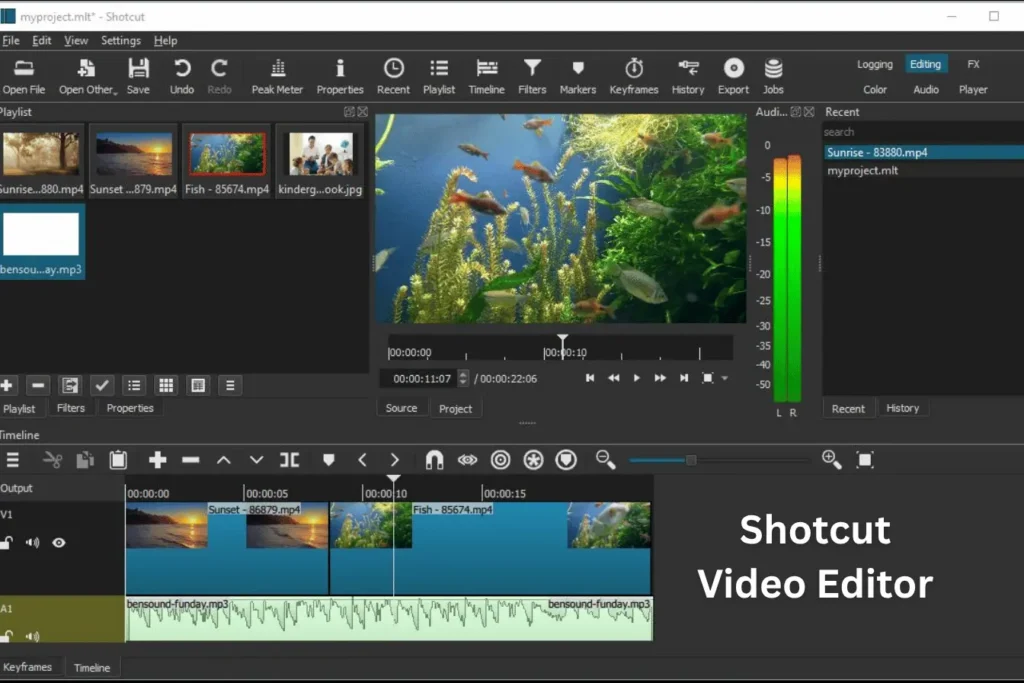
Shotcut is open-source, actively updated, and built on the FFmpeg engine, which handles compression efficiently without needing a beastly GPU.
Minimum requirements: Officially, Shotcut asks for at least 4GB RAM for SD footage and 8GB for HD work, though it’s genuinely installable with as little as 2GB. Its own FAQ recommends turning on Preview Scaling and Proxy mode specifically for underpowered machines.
Our hands-on experience: While testing Shotcut on our 4GB RAM laptop, the timeline scrubbed smoothly once we turned off preview scaling to a lower resolution. Heavy transitions and multiple layered clips, though, caused noticeable stutter and a few seconds of freeze on scrub.
Pros:
Frequent updates and a genuinely active developer community. No watermark, ever, even on exports.
Con:
The interface has a learning curve if you’ve never used a panel-based NLE before.
2. CapCut Desktop
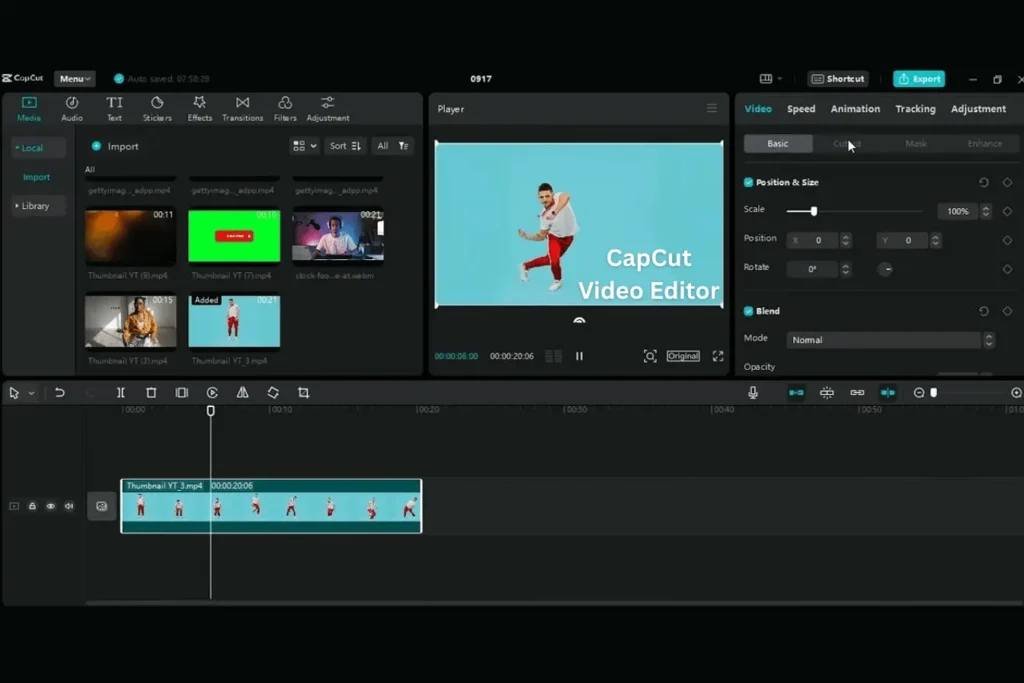
CapCut’s desktop version inherited the speed of its mobile app. It’s built for social content, which means quick trims and captions rather than heavy compositing.
Minimum requirements: CapCut doesn’t publish rigid specs, but 4GB RAM and a dual-core processor are the practical floor for stable performance on Windows.
Our hands-on experience: CapCut Desktop opened faster than any other tool we tested and handled basic cuts without a hiccup. RAM usage crept up fast once we added auto-captions and background removal, spiking close to 3.5GB on its own.
Pros:
Genuinely fast startup time and a beginner-friendly drag-and-drop layout. Built-in AI captions save real editing time.
Con:
It leans on an internet connection for several features, which is a problem if your low-spec setup also has spotty Wi-Fi.
3. VSDC
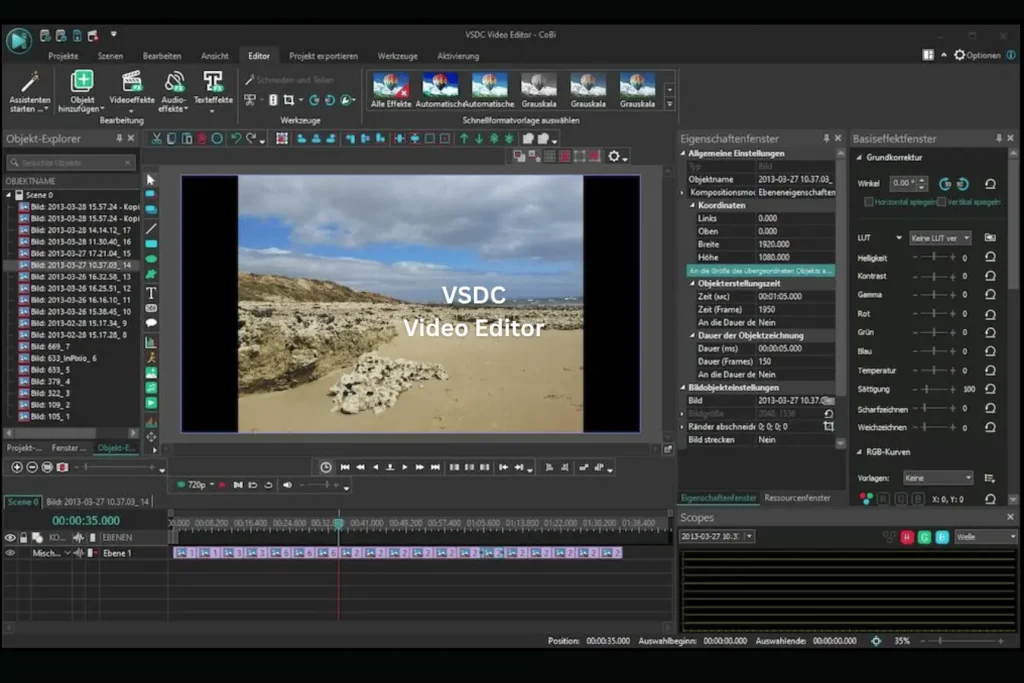
VSDC has quietly built a reputation as one of the least demanding non-linear editors on the market. It skips GPU acceleration almost entirely, relying on CPU processing instead.
Minimum requirements: VSDC can technically install with under 512MB RAM, but for actual Full HD editing, 2GB RAM is the realistic working minimum.
Our hands-on experience: VSDC handled our 1080p clip without a single freeze during scrubbing, which genuinely surprised us given how bare-bones the install felt. Export took noticeably longer than Shotcut, since it isn’t optimized for multi-core rendering the same way.
Pros:
Genuinely the lightest install file of the five, under 100MB. Runs stably even on ancient Windows 7-era machines.
Con:
The interface feels dated, and the effects menu can be confusing to navigate at first.
4. Kdenlive
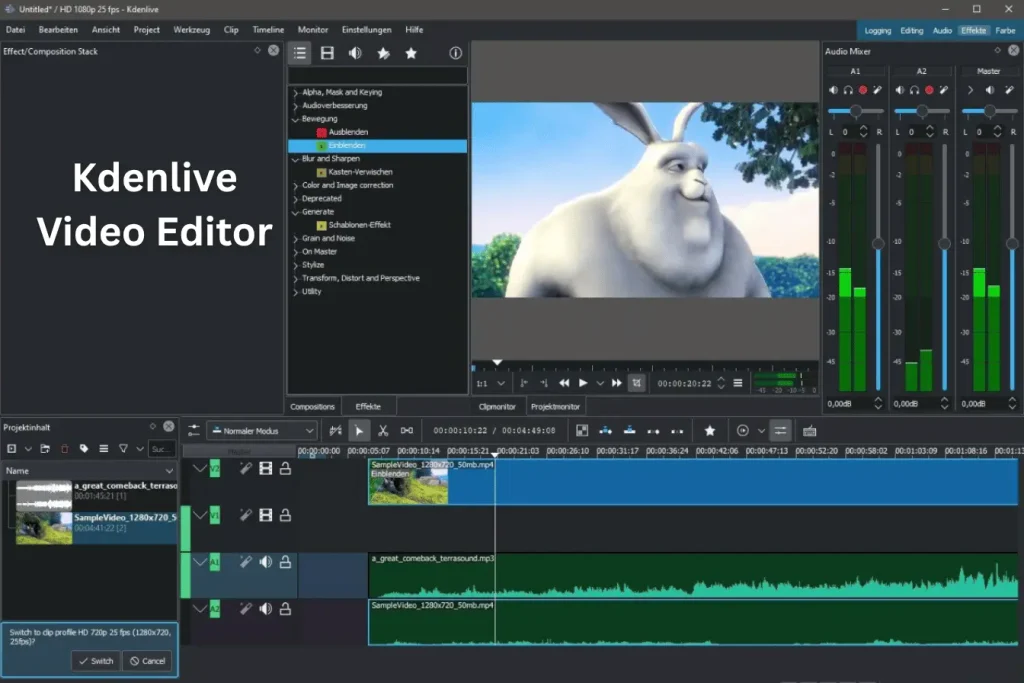
Kdenlive is a full-featured open-source editor that punches above its weight class, offering multi-track editing usually reserved for heavier software.
Minimum requirements: Officially 4GB RAM for SD, 8GB for HD, but Kdenlive’s own docs specifically recommend Proxy and Timeline Preview Rendering for weaker CPU/RAM combos.
Our hands-on experience: Kdenlive struggled the most out of the five on our 4GB test rig; the timeline lagged noticeably before we manually enabled proxy clips. Once proxies were on, playback smoothed out considerably, though export still ran hotter and longer than Shotcut.
Pros:
Deep feature set that rivals paid software, including a real audio mixer. Strong keyframe and color grading tools.
Con:
It’s the most prone to instability on genuinely resource-limited systems if you skip the proxy setup.
5. OpenShot
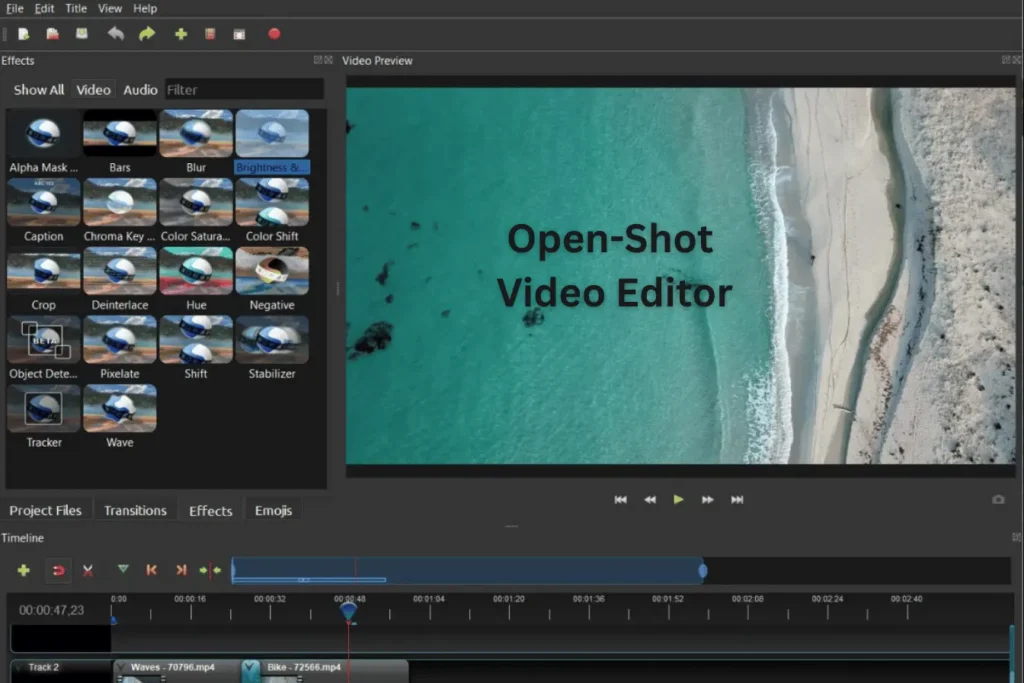
OpenShot is built for simplicity above everything else, and that simplicity is exactly why it tends to run lighter than its open-source cousins.
Minimum requirements: OpenShot officially needs just 2GB RAM, making it one of the lowest bars on this list.
Our hands-on experience: OpenShot was the most consistently stable editor on our old i3 laptop, never once locking up during scrubbing. The trade-off showed up on export, which took noticeably longer than Shotcut for the same clip.
Pros:
Genuinely the easiest learning curve of the bunch, great for absolute beginners. Unlimited tracks even at 2GB RAM.
Con:
Fewer advanced effects compared to Kdenlive or Shotcut.
Pro-Tips to Prevent Lag While Editing
- Turn on proxy or preview scaling immediately. Don’t wait until things freeze; enable it before you import your first clip.
- Drop your playback resolution to 1/2 or 1/4 during editing. You can always export in full quality later.
- Close Chrome and every other tab-hungry app. Chrome alone can eat over a gigabyte of RAM sitting idle in the background.
- Plug into power before you start. Battery-saving mode throttles CPU performance, and that throttling shows up instantly on the timeline.
Read More: Free AI Video Generators With No Watermark (2026 Guide)
Frequently Asked Questions
Final Thought
If you want the safest all-rounder, go with Shotcut; it balances features and stability once proxy mode is on. If your PC is genuinely ancient, OpenShot or VSDC will give you the smoothest, most crash-free experience. If you’re editing for social media and want speed over depth, CapCut Desktop gets the job done fastest, provided your Wi-Fi cooperates. Pick based on your weakest hardware bottleneck, not the feature list.

Ravi Shankar Naval is the founder of Smart Write Lab, where he publishes practical content about AI tools, blogging, SEO, and digital growth. His goal is to help beginners and creators learn modern online strategies through simple, helpful, and easy-to-understand tutorials.